Follow these steps to set up a LinkSys SPA-3102 VoIP
Gateway with 3CX
Phone System:
- Ensure that you have created the PSTN line in 3CX Phone
System first. Take note of the Authentication ID field and
the Authentication password that you have entered for the
line connected to the VoIP Gateway.
- Connect the LinkSys SPA-3102 gateway to the network and
mains power supply. The device will boot up, and providing
you have DHCP installed on your network, will obtain an IP
address. To get the exact IP address, check the most recent
DHCP lease, or alternatively use a network scanner to find a
device with the string ‘LinkSys’.
- Another way to find the IP address would be to connect
an analog phone to the “phone” port and press “****”. This
would take you to the LinkSys Interactive Voice response
menu. From there you press 110# or 210# to check the
external (internet port) or internal (Ethernet/local port)
IP address respectively.
- Now point your browser to the gateway’s configuration
site: ‘http://x.x.x.x’, where “x.x.x.x” is the IP address
leased by the DHCP server to the gateway or the IP that you
were just provided by the Interactive Voice Response menu.
- Once the page loads click on the “Admin Login” link on
the top right hand side of the page. This will provide the
basic administration configuration version of the interface.
Now click on the “advanced” link on the top right hand side
of the page. This will provide the advanced administration
configuration version of the interface.
- One thing to have in mind is that if you are planning to
use this device just as a VoIP gateway, then you don’t need
to configure the Ethernet(local or yellow) interface; just
the Internet (external or blue) interface.
- Now click the “ROUTER” and after that the “WAN SETUP”
tab on the top of the page to configure an IP in your local
network. (Assuming you already have a router/internet
gateway and you just want to use this device as a VoIP
Gateway).
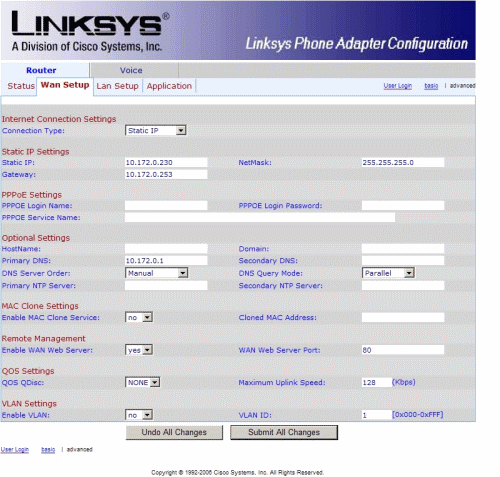
LinkSys SPA-3102 gateway WAN
configuration
-
Now click the “PSTN Line” tab on the top
side of the page. This will show the PSTN Line configuration
page.
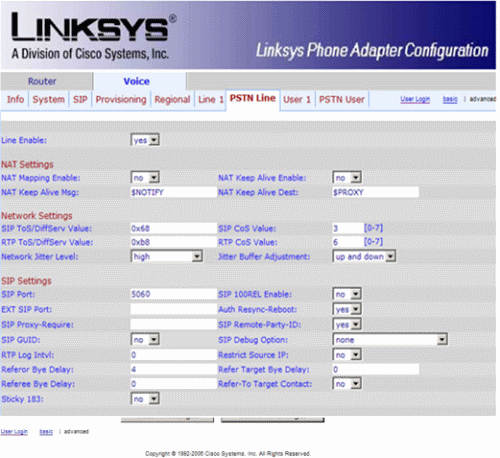
LinkSys SPA-3102 gateway PSTN Line
configuration
-
Ensure “Line Enable” is set to “yes”.
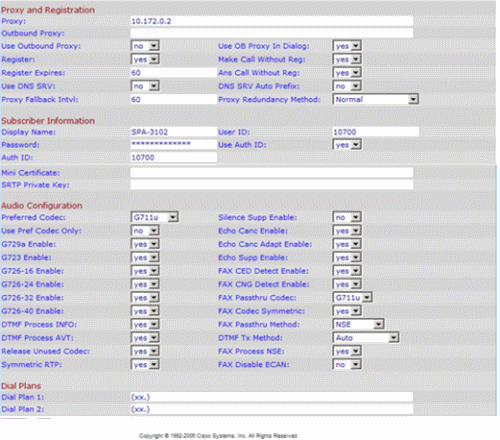
LinkSys SPA-3102 gateway Proxy
Registration, Subscriber, Audio Settings
-
In the Proxy Registration section:
a. Set the “Proxy”
field to the IP address or FQDN of the server on which the
3CX Phone System is installed
b. Set the “Register” field
to “yes”
c. The “Register Expires” field sets the
interval at which the gateway device will renew its line
registration with the 3CX Phone System Server. You can leave
the value at its default setting.
- The Subscriber Information section represents the PSTN
line connected to the gateway. Configure the line as
follows:
a. The “Display Name” should have a name assigned to it.
Choose a display name that will not match a possible number;
it also must NOT be blank. If this field is blank, or
matches the caller’s number, the device will operate in
2-stage dialing mode. Choosing an alphanumeric Display name
is a safe choice. E.g.: “SPA-3102” or “Outside Line”.
b.
In the “User ID” field, enter a name for the line.
c. Set
the “Use Auth ID” field to “yes”.
d. In the
“Authentication ID” and “Password” fields, enter the ID and
Password that you entered for the line in the 3CX Phone
System Management Console. These fields must match
the ID and password set for the line in the 3CX Phone System
Management Console.
-
In the Audio Configuration section, set the “Preferred
Codec” field to “G711u”.
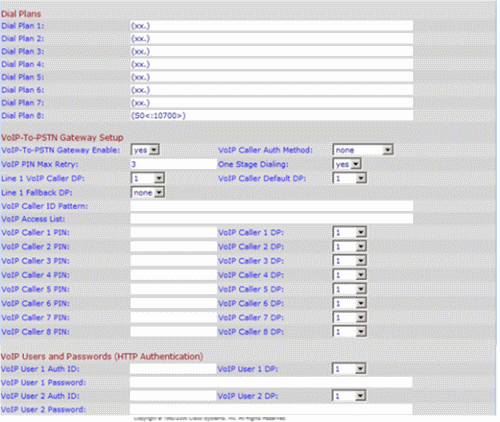
LinkSys SPA-3102 gateway Dial Plan,
VoIP-To-PSTN Settings
-
In the Dial Plans section, set the “Dial Plan
8” field to “(S0<:yyyy>)” where yyyy must be replaced
with the ID that you entered for the line in the 3CX Phone
System Management Console. For example, if the ID used was
“10700”, the “Dial Plan 8” field must be set to
“(S0<:10700>)”.
-
In the VoIP-To-PSTN Gateway setup
section:
a. Set the “VoIP-To-PSTN Gateway Enable”
field to “yes”.
b. Set the “VoIP Caller Auth Method”
field to “none”.
c. Set the “One Stage Dialing” field to
“yes”.
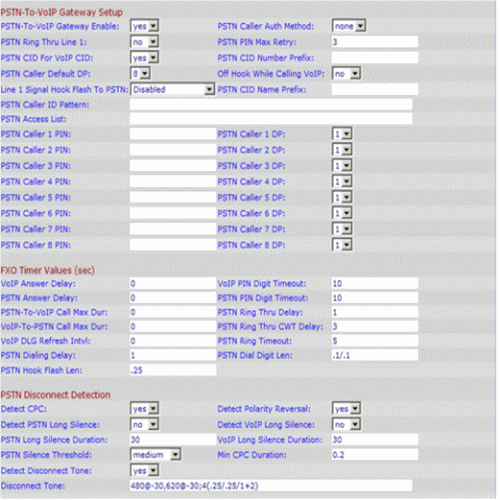
Linksys SPA-3102 gateway PSTN-To-VoIP
Settings
-
In the PSTN-To-VoIP Gateway Setup section:
a. Set the “PSTN-To-VoIP Gateway Enable” field to
“yes”.
b. Set the “PSTN Caller Auth Method” field to
“none”.
c. Set the “PSTN Called Default DP” field to
“8”.
-
By default, the SPA-3102 will wait for 16 seconds before
delivering a call to a SIP device. To change this, In the
"FXO Timer Values (sec)" section change "PSTN Answer Delay"
to 0. This will set the gateway to answer calls
immediately.
-
Click on the “Submit All Changes” button at the bottom of
the page to save your settings and restart the device. The
other settings that were not discussed are optional and can
be left as default.
- After the gateway has restarted, switch to the 3CX Phone
System Management Console, and click on the Phone System
-> “Line Status” (This is the default page). In the
section “External Lines”, the PSTN line connected to the
VoIP Gateway should be listed with a green status light.
How to configure a LINKSYS SPA-3102 (ATA
Functionality) with 3CX
Follow these steps to set up a LinkSys SPA-3102
VoIP Gateway with 3CX Phone System as an ATA:
- Ensure that you have created the extension in 3CX Phone
System first. Take note of the extension number,
Authentication ID field and the Authentication password that
you have entered for the extension in the 3CX Phone system.
- Now click the “VOICE” and after that the “LINE” tab on
the top of the page to configure the LinkSys as an ATA with
your analog phone.
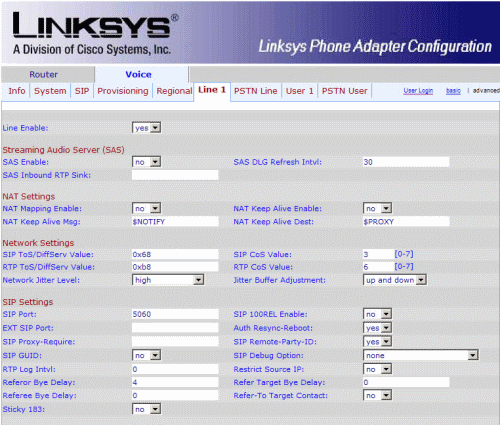
LinkSys SPA-3102 gateway Line 1/ATA
settings.
-
Ensure “Line Enable” is set to “yes”.
-
In the SIP settings section, sip port must
be configured to 5060.
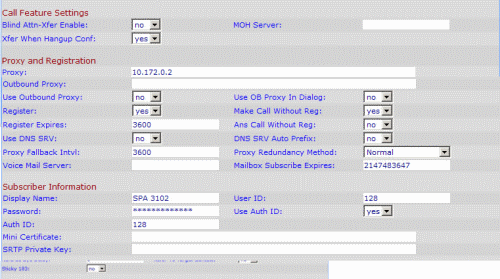
LinkSys SPA-3102 gateway Line 1
Proxy, Registration and Subscriber settings.
-
In the Proxy and Registration
section:
a. Set the “Proxy” field to the IP address
or FQDN of the server on which the 3CX Phone System is
installed
b. Set the “Register” field to “yes”
c. The
“Register Expires” field sets the interval at which the
gateway device will renew its line registration with the 3CX
Phone System Server. You can leave the value at its default
setting.
-
The Subscriber Information section represents
the Extension configured in the ATA part of the LinkSys.
Configure the extension as follows:
a. The “Display
Name” should have a name assigned to it. Choose a display
name that will not match a possible number; it also must NOT
be blank. If this field is blank, or matches the caller’s
number, the device will operate in 2-stage dialling mode.
Choosing an alphanumeric Display name is a safe choice. Eg:
“Joe Bloggs” or “Daniel Smith” or “Sales Desk 1”.
b. In
the “User ID” field, enter a name for the extension.
c.
Set the “Use Auth ID” field to “yes”.
d. In the
“Authentication ID” and “Password” fields, enter the ID and
Password that you entered for the extension in the 3CX Phone
System Management Console. These fields must match
the ID and password set for the extension in the 3CX Phone
System Management Console.
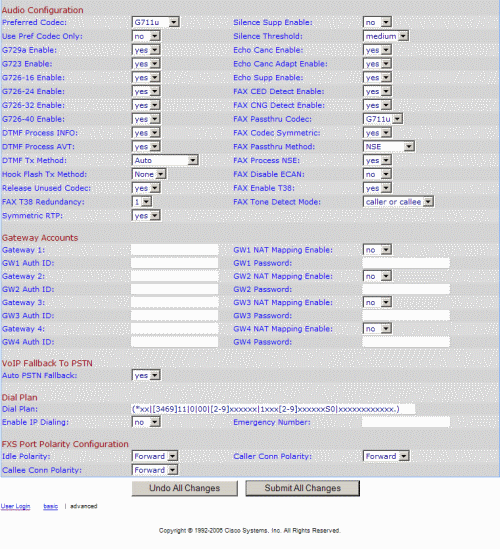
LinkSys SPA-3102 gateway Line 1/ATA
audio configuration.
- In the Audio Configuration section, set the “Preferred
Codec” field to “G711u”.
- Click on the “Submit All Changes” button at the bottom
of the page to save your settings and restart the device.
The other settings that were not discussed are optional and
can be left as default.
- After the gateway has restarted, switch to the 3CX Phone
System Management Console, and click on the Phone System
-> “Line Status” (This is the default page). In the
section “Extensions”, the extension connected to the VoIP
Gateway should be listed with a green status light.